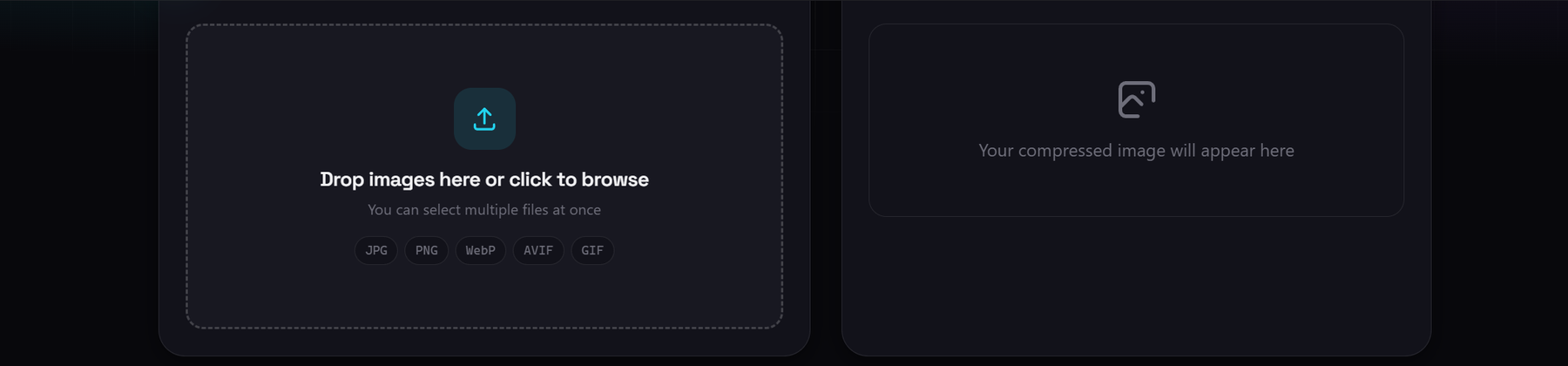
Aihangsoft is a free TinyPNG alternative that compresses images inside your browser instead of uploading them to a server. There is no 20 image session limit and no 5 MB per-file cap, because there is nothing to transfer. You pick the output format and the quality level yourself.
TinyPNG's free web tool accepts up to 20 images per session, caps each image at 5 MB, and limits format conversion to 3 images per session. Compression runs on Tinify's servers, and the company states that images are deleted after at most 48 hours. Aihangsoft has no size ceiling and no session counter, but the trade-off is real: its PNG output is lossless OxiPNG recompression, which preserves every pixel yet usually produces larger files than TinyPNG's quantised PNG output. For JPEG, WebP and AVIF, you control how aggressive the recompression is.
If you are looking for a TinyPNG alternative, the trigger is usually a limit rather than a price. The free web tool stops at 20 images per session with a 5 MB ceiling per file.
Why people look for a TinyPNG alternative
TinyPNG, built by Tinify, has a genuinely useful free tier. The constraints are on its own site: a maximum of 20 images per upload session, a maximum of 5 MB per image, and a separate ceiling of 3 images per session for format conversion.
The web tool needs no account, so the friction is not a sign-up wall, it is the queue size. A folder of 60 product photos means three separate runs, and a 12 MB camera original cannot pass through the free tool at all because it exceeds the 5 MB per-image limit.
Paid plans raise the ceilings rather than remove the model. Web Pro is listed at US$39 per user per year, lifts the per-image limit to 75 MB and keeps compression unlimited, but conversion still stops at 3 images per session. Web Ultra is listed at US$149 per user per year, raises the limit to 150 MB and removes the conversion cap. Both are billed annually, and TinyPNG states there is no free trial.
How Aihangsoft compares to TinyPNG
Aihangsoft's Image Compressor reads images through the browser's file API and re-encodes them with canvas and WebAssembly codecs. Nothing is uploaded, so there is no transfer step and no server-side copy.
| Dimension | Aihangsoft | TinyPNG free web tool |
|---|---|---|
| Where images are processed | In your browser, on your own device | On Tinify servers after upload |
| Account required | No | No for the free web tool, required on paid plans |
| Images per run | No limit, as many as memory allows | 20 per session |
| Maximum file size | No limit in the code | 5 MB per image |
| Format conversion per session | No limit | 3 images |
| PNG compression | Lossless OxiPNG recompression | Quantisation, colours reduced |
| Output formats | WebP, JPEG, PNG, AVIF | PNG, JPEG, WebP, AVIF, JPEG XL, animated PNG |
| Price | Free | Web Pro US$39 per year, Web Ultra US$149 per year |
| Developer API | Not offered | First 500 per month free, then US$0.009 per image |
The format list is wider on TinyPNG, which adds JPEG XL and animated PNG. The compression figures are not like-for-like either, because the two engines treat pixel data differently.
Image Compressor
Compress one image or a folder in the browser, with WebP, JPEG, PNG and AVIF output and no file size limit.
Lossless PNG versus quantised PNG
The largest difference is what happens to a PNG. TinyPNG applies lossy quantisation: it reduces the number of distinct colours and rebuilds the palette. That is why its output can be dramatically smaller, and also why fine gradients and subtle shading can shift when you look closely.
Aihangsoft's PNG path runs OxiPNG, a lossless optimiser compiled from Rust to WebAssembly. It rewrites the file's structure and compression streams without touching a single pixel, so the decoded image is identical to the original. The result is usually smaller than the input but larger than quantisation would produce. Three levels are available, Fast (level 2), Balanced (level 4, the default) and Max (level 6), and if OxiPNG fails or the output would not be smaller than the input, the original file is kept.
Both are correct, for different jobs. Quantisation wins when the smallest file matters more than exact colour fidelity, the normal case for web thumbnails and banners. Lossless wins when the PNG will be edited again, such as a logo, icon or UI screenshot, because a lossless pass never degrades the image no matter how often it runs.
One figure is worth being precise about. TinyPNG's own pages disagree: the homepage says up to 80 percent smaller, another says more than 85 percent, and the tool page quotes an average of 75 percent. Treat those as the vendor's marketing range, not a benchmark.
Where TinyPNG is still the better choice
There are workloads where TinyPNG is the right answer and a local compressor cannot compete.
PNG compression ratio
If the smallest possible PNG matters more than a slight colour shift, TinyPNG will usually win. Quantisation changes pixels by design, OxiPNG refuses to, and that constraint costs bytes. For web delivery, exporting to WebP or AVIF here is usually better.
Format coverage
TinyPNG handles JPEG XL and animated PNG alongside PNG, JPEG, WebP and AVIF. If your pipeline depends on either, it is the only one of the two tools that can read them.
A Figma plugin and a developer API
TinyPNG also ships a Figma plugin and a documented API, so a team can compress on every design export or every build. The API is free for the first 500 compressions per month, then US$0.009 per image for the next 9500, dropping to US$0.002 above that, billed only on successful compressions. A browser tool cannot automate a build step like that.
Compressing a batch without uploading
The workflow is the one you know, minus the queue.
- Open the tool and drop your images. Drag a folder's worth of files onto the drop zone, or click to browse. Each file is read from disk locally, so a large batch begins immediately with no upload bar.
- Choose the output format and quality. WebP is the default, with JPEG, PNG and AVIF also available. The quality slider runs from 1 to 100 and starts at 75, and it hides for PNG because that path is lossless.
- Set the resize percentage if you need it. The slider runs from 10 percent to 100 percent and starts at 100 percent, and lowering it is the most effective control when an image is far larger than its slot.
- Review, then press Recompress. Any settings change triggers an automatic re-encode after a 260 millisecond debounce, and the Recompress button re-runs the current selection. Each result card downloads its own file.
A full-screen comparison viewer is available for judging a lossy result, with a before and after slider, wheel zoom from 5 percent to 800 percent, panning, and previous and next navigation.
Limits of the Aihangsoft image compressor
These are real limits, stated so nothing is a surprise later.
| Limit | What it means |
|---|---|
| No server-side queue | A very large batch is bounded by your machine, not by a paid tier. |
| PNG output is lossless only | There is no quantisation option, so PNG results are usually larger than TinyPNG's. |
| Lossy output depends on your judgement | JPEG, WebP and AVIF quality comes from the 1 to 100 slider, and the tool applies the value you set. |
| Output can grow | An already optimised image may not benefit from a lossy pass, so the interface suggests lowering the quality or keeping the original format. |
| Large images depend on device memory | A very large bitmap can stall a low-memory phone, since the whole image is held in the tab. |
Two points belong here. There is no file size limit anywhere in the code, so the practical ceiling is device memory rather than a pricing limit. And an already compressed image can come out larger after a lossy pass, which is why the tool keeps the original.