Slack allows a single file of up to 1 GB, on every plan and for almost any file type, so size is rarely the reason an upload fails. The free plan's real constraint is time, not megabytes: uploaded files become invisible after 90 days.
Those figures come from Slack's own document sharing page, which says you can share just about any file type up to 1 GB, and from its help centre, which describes the free plan as 90 days of message and file history, with data over a year old deleted. Both were checked on 2026-10-01.
So the real question is when size matters at all: a free workspace whose history window keeps rolling, a channel where a 900 MB recording is more than anyone wants to download, or a file that belongs behind a link. This guide covers which limits are real, which are not, and how to shrink a video, a PDF or a photo in your browser.
Slack earned its reputation for rejecting files in an earlier era, when the ceiling sat much lower. The limit is now generous enough that ordinary documents never touch it, so knowing which limit is which saves you from compressing a file that would have uploaded untouched.
Video Compressor
Set resolution, frame rate and quality, then download an MP4 that plays inline in Slack. The file never leaves your device.
What Slack's file size limit actually is
Slack answers this in one line on its own document sharing page: you can share just about any file type up to 1 GB in size from your device.
| Limit | What Slack documents |
|---|---|
| Size of a single file | Up to 1 GB, for almost any file type, from your device |
| Free plan file access | 90 days. Older messages and files are hidden as new ones arrive |
| Free plan retention | Messages and files more than one year old are permanently deleted |
| Paid plans | Unlimited access to files |
The same page answers the storage question in terms of time rather than gigabytes. On the free plan, uploaded files are visible for 90 days; every paid plan gets unlimited access. Slack's help centre adds the deletion rule that gives the window teeth: once a free workspace reaches its visibility limit, older messages and files are hidden to make room for new ones, and anything older than a year is deleted.
Both pages were checked on 2026-10-01, and these are Slack's own figures. That matters, because a fixed 5 GB quota for free workspaces circulates widely online and does not appear on the Slack pages checked here. The current free-plan description is a rolling 90-day window plus a one-year deletion rule, which behaves differently from a hard quota: there is no warning at 80 percent, older files simply stop being reachable.
Where the 1 GB ceiling comes from
The number applies to almost any file type and is not split by plan, so a free workspace accepts the same single upload as a paid one. Slack does describe one limit that is not about megabytes: its help centre says the free version restricts use for storage and spam, so a burst of large files in a short period can be slowed or blocked.
When file size really becomes a problem
Three situations are worth separating, because only the last one is about the 1 GB number.
A free workspace that keeps rolling its window
Every upload on a free plan occupies a slot in a 90-day window and is deleted after a year. A 900 MB video that nobody rewatches is not only unkind to whoever has to download it, it is also closer to being unrecoverable than a 30 MB screen recording of the same meeting. Shrinking a file before uploading is a way of keeping more of it for longer, and it costs nothing.
A channel where someone has to download it
Slack shows previews for images and plays some video inline, but a large attachment still means someone is downloading it, often on a phone on a metered connection. A 1 GB screen recording posted in a channel of twenty people is a lot of transfer for a file most of them will never open. Compressing to 720p, or trimming the clip to the part that matters, is courtesy rather than necessity. The video trimmer handles the second half of that job and leaves the video codec untouched when you use stream copy.
The wall itself
Slack documents 1 GB per file, and a long high-bitrate recording can reach it. That is the one case where compression is mandatory rather than advisable, and it is also the case where the file is usually better off as a link. More on that below.
Upload the file or send a link
Slack states plainly that it is a productivity platform and not intended for use as a file or log storage repository. That sentence is a useful test. If the file is a document someone will open once, an upload is fine. If it is a 40 minute recording, a build artefact or a folder of exports, a link to proper storage serves the workspace better, and Slack's own integrations with Google Drive, Dropbox and OneDrive exist for exactly that.
There is a middle ground. When the size comes from resolution and length rather than content that must survive byte for byte, a compressed copy is often genuinely better than the original: it opens faster, it plays inline, and it occupies less of a window that will eventually roll past it. The same arithmetic drives the much stricter limits covered in our guides to compressing a video for Discord and to the Gmail attachment limit.
How to compress a file for Slack in your browser
- Add the clip. Drop it into the video compressor. It is read from your disk into the page, so nothing is uploaded; the first run downloads the FFmpeg engine, about 30 MB, which the browser then caches.
- Set resolution, frame rate and quality. For a Slack upload, 720p and 30 fps with the quality slider on Balanced is a sensible start, and the tool reports the new size once the run finishes.
- Download the MP4 and post it. The output is written with its index at the front, so the player can begin before the whole file has arrived.
The tool is quality-first: you choose a quality level and the size follows.
Which settings to use
The quality slider is not a percentage or a size target. It maps to the encoder's CRF value, where a lower number means better quality and a larger file.
| Slider label | Slider value | CRF | What it is for |
|---|---|---|---|
| Best | 100 | 20 | A short clip you want clean at full screen |
| High | 75 to 99 | 28 to 20 | Detail that has to survive a larger display |
| Balanced | 50 to 74 | 36 to 28 | The default and the right starting point |
| Small | 25 to 49 | 43 to 36 | Longer or busier footage you still want readable |
| Smallest | 1 to 24 | 51 to 44 | Last resort. Blockiness shows up on motion |
Resolution and frame rate usually do more work than the quality slider. Halving the resolution cuts the pixel count to a quarter, and halving the frame rate removes roughly half the frames the encoder has to describe. Both are easier to spare on a chat clip than sharpness, since a 720p clip at good quality reads as clean.
Two other settings are fixed and worth knowing. Audio is written at 128 kbps AAC with no control, and the WebM option uses VP8 rather than VP9, so MP4 is the better default for a client that wants to preview the file inline. The resolution menu only scales down: choosing 1080p will not enlarge a 720p source.
Slimming down a PDF or a photo for Slack
Not everything posted to Slack is a video, and the same reasoning applies to documents and images.
PDFs
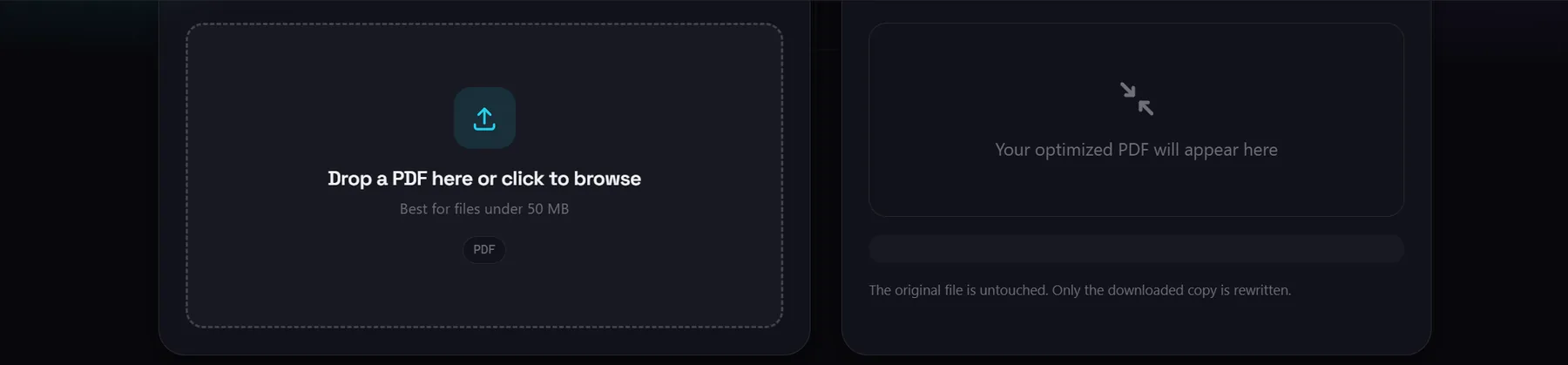
Compress PDF rewrites a document's internal structure with qpdf compiled to WebAssembly, inside the tab. It accepts files up to 50 MB and refuses anything larger rather than uploading it. Standard packs the objects into compressed streams at level 6; Maximum uses level 9 and also linearizes the file so a reader can draw the first page before the download finishes. It is a lossless structural pass, so it does not re-encode images: a scan-heavy file may barely change, and a PDF that is already tightly packed can come out slightly larger. A password protected document has to be unlocked first.
Compress PDF
Rewrite a PDF with lossless structural optimization so it is lighter to post and quicker to open. Up to 50 MB, nothing uploaded.
Photos
Image Compressor takes JPG, PNG, WebP, AVIF and GIF, and writes WebP, JPEG, PNG or AVIF. It offers a quality slider, a resize slider from 10 to 100 percent, and lossless OxiPNG recompression for PNG output, with a batch mode that recompresses everything once you have tuned the settings. Two details are worth knowing before you rely on it. When re-encoding would make a file larger, the tool keeps your original instead of pretending to succeed. And a JPEG has no alpha channel, so transparent areas are filled with white before encoding rather than coming out black.
What these tools cannot do
These limits are the reason the sections above are worded the way they are.
- Compress PDF has a hard 50 MB ceiling. A larger document has to be split first, or handled on the desktop, because the whole file is held in browser memory while it is rewritten.
- PDF compression is structural only. No image is re-encoded and no font is dropped, so a scanned contract may not shrink, and there is no setting that forces a target size.
- The video compressor has no target size field. You pick a quality level and read the result; reaching an exact number would require two-pass encoding with a calculated bitrate, which is a desktop job.
- Audio is fixed at 128 kbps, and WebM output uses VP8. Neither is adjustable here, and H.264 in MP4 gives a smaller file at the same visual quality.
- Nothing here is a cloud drive. This site does not store your file or hand you a shareable link, so replacing an upload with a hosted link is a job for Google Drive, Dropbox or OneDrive.
- The work happens on your device. A long recording takes as long as your own machine takes, and browser memory sets the practical ceiling on length.