No, this tool cannot compress a PDF to exactly 500 KB, because it has no target size box. It performs a lossless structural rewrite with qpdf, packing objects into compressed streams and rebuilding the cross reference tables, and it never re-encodes images. Whether a file lands anywhere near 500 KB depends on why it is large in the first place.
A PDF that is large because of loose structure, never-compressed streams or years of incremental saves can lose a real percentage of its size, and a small text document sometimes crosses under 500 KB in one pass. A PDF that is large because it holds scanned pages or photographs barely moves, because the bytes are image pixels and the rewrite copies them untouched. The tool reports the true before and after sizes and tells you plainly when there was nothing to gain.
Search for "compress pdf to 500kb" and you will meet a wall of pages promising an exact number, usually with a slider and a claim that quality is untouched. Both halves deserve scrutiny: landing on a specific size means re-encoding the images inside the document, and the moment images are re-encoded, someone chose a quality level for you. This page explains why a lossless optimizer cannot accept "500 KB" as an instruction, and what to do when your file will not reach it.
Compress PDF
Rewrite a PDF's internal structure to reclaim wasted bytes, with the real before and after sizes shown afterwards. The file never leaves your device.
Why there is no "500 KB" field
The optimizer used here is qpdf 11.7.0, compiled to WebAssembly and executed inside the page. Its task is to change how the document is stored, not what it contains. Two modes are offered. Standard packs the objects into compressed object streams at compression level 6, deflates streams that were stored uncompressed, and rebuilds the cross reference tables. Maximum repeats that work at level 9 and additionally linearizes the file.
| Step the rewrite performs | What it removes | When it runs |
|---|---|---|
| Object streams | Per-object headers and padding scattered through the file | Standard and Maximum |
| Stream compression | Data blocks that the authoring app left uncompressed | Standard and Maximum |
| Cross reference rebuild | Loose offset tables and leftovers from incremental saves | Standard and Maximum |
| Linearization | Nothing. It reorders the file so page one can be drawn first | Maximum only |
| Image data inside the pages | Nothing. It is copied byte for byte | Never |
There is no lever in that list for the total size of the file. The tool decides the compression level, whether to generate object streams and whether to linearize, and that is the entire control surface. A target of 500 KB is not rejected out of caution, it is simply not expressible: reaching a number in kilobytes means spending image quality to buy bytes, and this operation does not touch image quality at all.
That is the difference between two products that share a name. A target size compressor re-encodes every embedded image at a quality it calculates, downsamples resolution where it must, and loops until the output crosses the line, producing a smaller file and a changed one. This tool makes the opposite trade: the pages look identical, and there is no promise about the number you end up with.
What actually makes a PDF large
Before asking whether 500 KB is reachable, it helps to know which of three things holds the weight.
| What the file is mostly made of | How it behaves under a structural rewrite |
|---|---|
| Text, fonts and vector lines | Compresses well. These parts are small, and unoptimized exporters often left them loose |
| Embedded photographs | Barely moves. A JPEG or PNG is copied as is, so the pixels stay the same size |
| Scanned pages | Barely moves. Each page is one already-compressed image, and it dominates the file |
The rule is blunt. If images dominate the byte count, a lossless rewrite has almost nothing to work with, whichever mode you pick. If structure dominates, there may be real slack to reclaim. You can usually tell which case you are in by opening the file and asking whether a page is mostly letters or mostly a picture.
When 500 KB is realistic, and when it is not
The target is neither achievable nor impossible in the abstract: it is achievable for some documents and a fiction for others.
| Your PDF | Odds of landing near 500 KB | Why |
|---|---|---|
| A text report or invoice exported by an older office suite | Good, especially if the starting point is only a few times the target | Uncompressed streams and a loose cross reference table are real waste the rewrite can reclaim |
| A contract or manual saved many times with edits | Good | Obsolete object revisions from incremental saves are discarded |
| A photo gallery or a deck exported as images | Poor | The bulk is image data, and image data is copied rather than recompressed |
| A 30 page scan at 300 DPI | Very poor | Every page is a large compressed image, so the rewrite has almost no headroom |
Two cautions come with that table. First, a small rewrite has its own cost. There is a documented measurement in this tool's source notes: a three page PDF of 1295 bytes came back at 2568 bytes, because gathering the objects into a stream and linearizing carries a few hundred bytes of its own. On a file with no slack, that overhead is the whole story. Standard mode is the fairer test, since it skips the linearization step.
The second is that shrinking a scanned page means a lossy operation, whichever tool you use: the page images are either recompressed at a lower quality or re-rendered at a lower resolution. A structural optimizer can do neither. If your file is a scan and the limit is 500 KB, you are not looking for a better optimizer, you are looking for a smaller picture of the same pages.
How to find out what your PDF can lose, in three steps
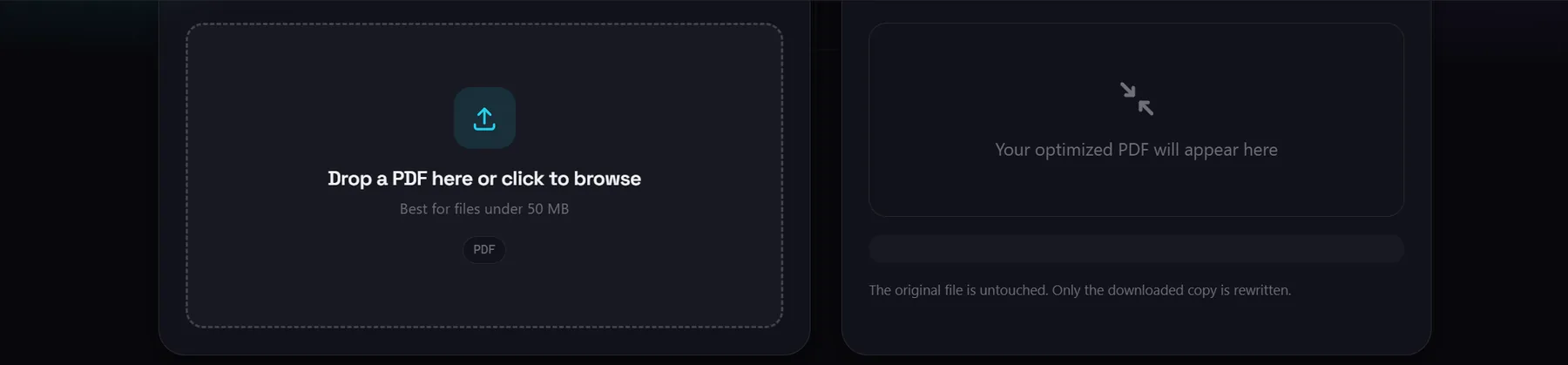
- Add the PDF. Drop the file into the optimizer or click to browse. It is read locally, and checked against the 50 MB cap before any work starts.
- Choose Standard, then try Maximum. Standard packs the objects at level 6 with no linearization, which makes it the cleaner comparison against the original. Run Maximum afterwards to see whether linearization helps or hurts on this file.
- Read the two numbers before you download. The result panel prints the before size, the after size and the percentage change. If the output is smaller, keep it. If it is unchanged or larger, keep the original and move on to the routes below.
The original file on disk is never modified, so a run that gains nothing costs a few seconds. The engine is about 1.3 MB, downloaded on first use, after which the tool works offline.
The routes that do land on a number
When structural optimization is not enough, the saving has to come from removing content, and three browser tools in this set can do that.
Delete the pages you are not sending
Removing content beats compressing it every time. An application form that ships with four pages of terms you are not submitting is a large fraction of the file in pure waste, and no optimizer will remove it for you. Use Organize PDF to reorder and delete pages visually, then optimize what remains. On a scanned document this is usually the largest single saving available, and it costs nothing in quality because the pages you keep are untouched.
Rasterize when searchable text does not matter
If the document only has to be read, not quoted or searched, send it through PDF to JPG at a quality you choose, then rebuild a PDF from those images. This can shrink a scan by far more than any structural rewrite, because it is genuinely lossy. The price is explicit: a selectable text layer becomes a picture of text, which is a fine trade for a scanned receipt and a bad one for a contract someone may search later.
Split first when the file is over the cap
The optimizer refuses anything above 50 MB, a practical ceiling that keeps the browser tab responsive. For a larger document, cut it into parts with Split PDF, optimize each part, and join them again with Merge PDF. It is three browser steps, and the file still never leaves your machine.
What this tool cannot do
These are the limits worth reading before you spend time on a file that was never going to move.
- No target size, in kilobytes or anywhere else. There is no field for "make this 500 KB". The output size is a consequence of the input, not an instruction you can give.
- No recompression of images, so no guaranteed reduction. A photograph comes out with the same pixels, and roughly the same bytes, as it went in.
- No resolution downsampling. A 300 DPI scan stays 300 DPI. Changing that is a separate and lossy decision, and the tool will not make it quietly on your behalf.
- Scanned and photo-heavy files barely move. This is both the case the tool has least to offer and the case most people searching for "500 KB" actually have.
- The output can be slightly larger. Object streams and linearization carry their own small overhead, so an already compact file may come back a little bigger. The tool reports this as an ordinary result rather than an error, and the original remains the better copy to keep.
- A 50 MB input cap. Anything larger is refused in the page rather than sent to a server, so a big report has to be split first.
- No password protected files. The engine has to decrypt a document before it can rewrite it. Unlock the PDF first, then compress the unlocked copy.
- No page deletion and no content editing. Those live in the tools above, kept separate on purpose.
Why a local rewrite is still the right first attempt
A server based compressor can run a full lossy image pipeline, and those are the numbers its marketing quotes. The trade is that the document travels to a machine you do not control, which matters more than a few hundred kilobytes for a contract or an ID scan.
Run the local rewrite first because it is free, instant and safe. If it gets you under the limit, nothing was re-encoded. If it does not, you have learned that the weight in your file is image data, which tells you which route above to take next.